
How to Build Full-Stack Apps with Mocha AI?

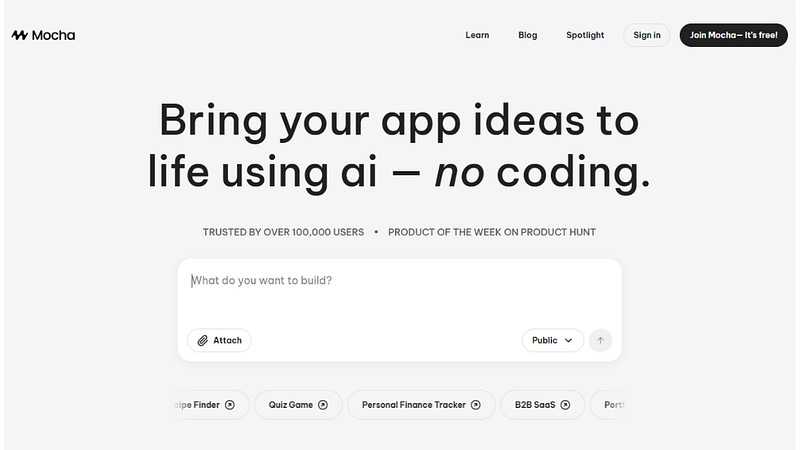
MOcha AI is a new kind of code editor that lets you build full-stack apps without messing around with external services like Supabase or Neon.
If you’re looking to get a working app up and running fast — whether you’re prototyping or launching — MOcha AI has you covered.
It packs frontend, backend, authentication, and a database all in one spot.
In this article, I’ll walk you through how it works, share some practical tips, and help you figure out when MOcha AI can actually save you time on your next project.
Table of Contents
🚀 What MOcha AI Actually Is
MOcha AI is an AI-powered app builder that writes and deploys full-stack applications for you.
Instead of scaffolding only the frontend and asking you to integrate a database or authentication provider, MOcha AI generates the backend, persistent data tables, and OAuth flows so you don’t have to piece together third-party services.
Think of MOcha AI as a single platform that handles three core layers:
Frontend: Visual components and UX that you can customize.
Backend: APIs and server logic generated automatically.
Data & Auth: Built-in tables and authentication (including Google sign-in) without wiring in external DB providers.
In short: you tell MOcha AI what you want, and it starts creating your app.
You can visit getmocha.com to try it out — but keep reading to see how it works in practice.
🔐 Adding Authentication Without Third-Party Glue
Prototyping a full-stack app? Authentication is usually a pain. But with MOcha AI, you just tell it to “create a login/signup screen and set up an OAuth backend,” and it gets to work on the whole thing.
MOcha AI even sorts out the OAuth client configuration for you. Want your own branding on the Google consent screen? Go to Google Cloud Console, make your OAuth credentials, grab the client ID and secret, and drop them into MOcha AI’s secret management. That way, you can swap out MOcha’s branding for your own name and logo. Easy.
🧭 Explore Code, Data, and Settings
MOcha AI exposes a few key sections that you’ll use frequently:
Code: You can browse and download the full source code the AI generated. That makes it easy to push to GitHub, open locally, or continue development in editors like Cursor or Replit.
Data: An internal table view shows the database schema and records. For example, after signing in with Google you’ll see a user record with ID, email, and timestamps. MOcha AI will create additional tables as you add features.
Settings: Project name, visibility, assets, and publishing options. You can upload images and manage domains from here.
Being able to inspect the source code is important: MOcha AI isn’t a black box.
You get the generated files and can export or continue working on them outside the platform.
🌐 Publishing and Domains
Once your app’s good to go, just publish it straight from the platform.
By default, MOcha AI hands you a public subdomain on mocha.app, but if you’ve got your own domain, you can hook that up instead.
Don’t have one yet? There’s a quick, no-fuss way to buy a domain right from the dashboard.
You can pick who sees your app — make it public or keep it private. If you’ve set up your own OAuth credentials and secrets, you can even strip out the MOcha branding.
So whether you’re building a prototype, showing off a marketing demo, or testing an early SaaS MVP, MOcha AI fits right in.
⚙️ Connecting Google Cloud for Branded OAuth
If you want Google sign-in to show your product name and logo, you’ll need to create an OAuth client in Google Cloud Console and add the redirect URI that MOcha AI supplies.
The steps are straightforward:
Create a project in Google Cloud Console.
Open API & Services > Credentials and create an OAuth Client ID.
Add the authorized redirect URI provided by MOcha AI into the OAuth setup.
Paste the client ID and secret into MOcha AI’s secrets area.
After completing that, your Google logins will present your app name and logo instead of MOcha’s.
This is great when you’re demoing to users or early customers and want the branding to reflect your product.
⚖️ How MOcha AI Compares to Bolt.new and Lovable.dev
You might be wondering how MOcha AI stacks up against familiar AI builders like Bolt.new and Lovable.dev.
The key difference is simple:
Bolt.new and Lovable.dev are powerful for generating frontend and backend scaffolding, but they often expect you to integrate third-party providers (Supabase, Neon, Firebase) for data and auth.
MOcha AI aims to be more of an all-in-one platform by generating a built-in backend and data store so you don’t have to wire external services to get a fully functioning app.
That makes MOcha AI particularly appealing if you’re a solo founder, a no-code builder, or a “vibe coder” who wants to move fast without juggling multiple platforms.
It’s also handy when you want a single deployment URL and a clean developer experience to share with teammates or stakeholders.
Bolt AI vs Lovable AI:
A Comprehensive Comparison of AI App Buildersgenerativeai.pub
🛠️ Practical Use Cases and Tips
Here are some practical scenarios where MOcha AI can save you time:
Prototyping UI/UX: Quickly generate a convincing prototype with working navigation and data flows.
MVPs for Micro-SaaS: Launch a vetted early version with authentication and persistence so you can validate an idea without backend headaches.
Learning and Demos: Teach or demo full-stack patterns without manual setup of databases and OAuth.
Export & Iterate: Use the downloadable code as a starting point for production-grade refactors or custom infrastructure.
When using MOcha AI, keep these tips in mind:
Always inspect the generated code — it’s your starting point and you’ll want to understand the data model it created.
Use the secrets manager for third-party API keys you might add later (AI models, analytics, payment processors).
Configure Google OAuth if you plan to remove MOcha branding — it’s a small but worthwhile step for a professional demo.
❓ FAQ
How secure is the authentication generated by MOcha AI?
MOcha AI generates standard OAuth flows (e.g., Google sign-in) and stores user records in its managed data layer. For sensitive production use you should review the generated code and evaluate the platform’s security and compliance documentation. If you want branded OAuth, create credentials in Google Cloud and paste them into MOcha AI’s secrets.
Can you export the code and host it elsewhere?
Yes. MOcha AI exposes the full source code and lets you download it. You can push that code to GitHub and continue development on other platforms like Replit, Cursor, or a local environment.
Do I need to use any third-party databases with MOcha AI?
No — one of the main advantages of MOcha AI is that it manages a built-in backend and data layer so you don’t need to integrate Supabase, Firebase, or Neon to get a working app.
Is MOcha AI suitable for production SaaS?
MOcha AI is ideal for prototypes, MVPs, demos, and early-stage SaaS. For long-term production, you’ll want to audit the generated code, ensure scalability, and possibly migrate to dedicated infrastructure when your app grows. However, MOcha AI accelerates the initial build and testing phases significantly.
What if the AI makes an error while generating the app?
Like any code-generating tool, MOcha AI can sometimes produce errors. The platform will attempt to fix errors automatically, and you can also inspect or download the code to make manual fixes. In my test, MOcha AI encountered a minor error during auth creation and then corrected itself automatically.
✅ Final Thoughts
If you want to build full-stack apps fast, check out MOcha AI. It takes care of everything — frontend, backend, database setup, even authentication — so you don’t have to juggle a bunch of third-party tools.
You can use MOcha AI to whip up an interface kind of like Netflix or Spotify, tossed in Google sign-in, and have a live app running in just a few minutes.
You can look through the code it gives you, download it, and keep working right there or switch over to your favorite dev environment whenever you want.
MOcha AI won’t solve every problem in production, but it’s great for getting prototypes and early projects off the ground fast.
If you’re building something on your own, love no-code tools, or just want to avoid all the setup headaches, try MOcha AI.
You’ll be surprised how fast you can turn an idea into a working demo.