
How to Animate multiple characters With Lip Sync?

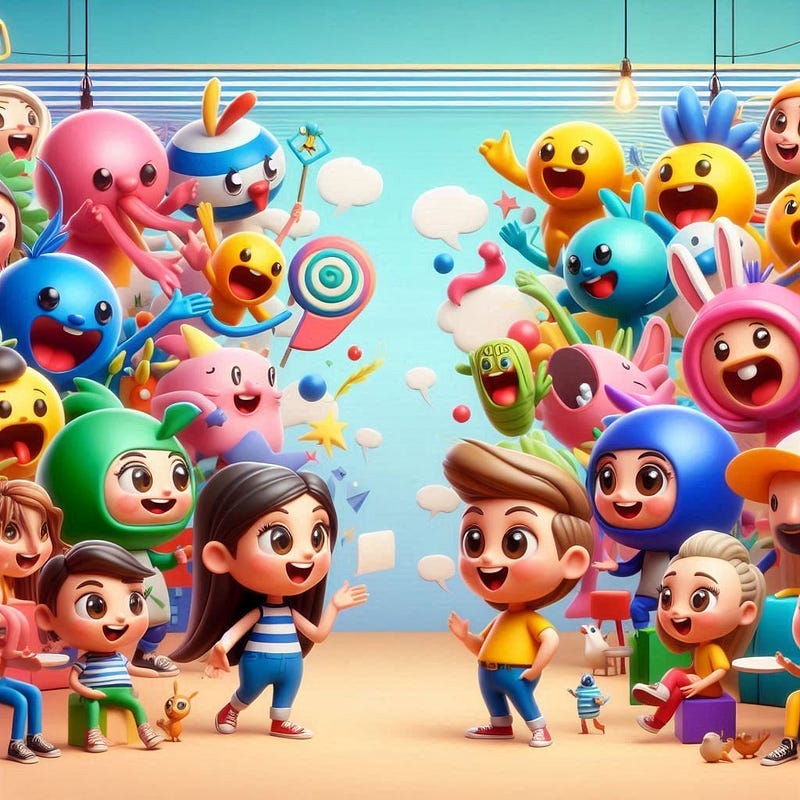
Ever wanted to bring a whole cast of characters to life without wasting hours syncing mouths or faking gestures? You’re not alone.
I will show you exactly how you can animate multiple characters fast — and actually have fun doing it — using Dzine AI and a few other handy tools.
I’ll walk you through the whole process, from your first idea to a finished video.
You’ll see how to handle audio for more than one speaker, plus I’ll throw in some tips that save you from the usual headaches that used to make multi-character animation such a chore.
Table of Contents
🎬 Why animating multiple characters was not easy
Remember when animating two people talking meant slogging through each character separately, tweaking mouths frame by frame, and just hoping you wouldn’t lose your mind before sunrise?
That old process made characters look wooden and awkward — nothing felt alive. Now, you can bring entire groups to life: natural lip sync, gestures, body movement, all straight from static images. No rigging, no endless tinkering.
So, what’s different? The tools got smarter. Dzine AI’s new multi-character lip sync lets you take one image with several characters, pick which faces you want to animate, add multi-speaker audio, and boom — complete animation.
The system sorts out timing, expressions, even those little body shifts that make things look real.
Whether you’re working with people, cats, aliens, or cupcakes, you can animate the whole crew in one go — and honestly, it looks shockingly good. Minutes, not days. That’s a game changer.
🖼️ Step 1 — Plan your idea and create the art
Before you even open Dzine, you need an idea and the artwork for your scene. You can ask a text model to help with prompts — I used ChatGPT to craft my image prompts — then jump into your favorite AI art generator.
Any generator works: Leonardo, NightCafe, Nano Banana, Lumen, or others.
The key is to export a high-resolution image so Dzine can detect and isolate faces cleanly when you upload it.
Keep in mind that non-human characters tend to be tricky for many tools, but Dzine handled my pastry chef cat surprisingly well.
So don’t be afraid to animate non-human characters — animate multiple characters doesn’t just mean people.
🎙️ Step 2 — Create multi-speaker audio
To animate multiple characters talking, you need multi-speaker audio.
I used Google AI Studio for the demo, but you can use ElevenLabs, ElevenLabs alternatives, or any text-to-speech that supports multiple distinct voices.
Here’s the workflow I recommend for creating the audio:
Decide on the number of speakers and assign voices. Give each one a personality direction (for example: “speak like a casual friend”).
Write the dialogue and break it into lines so the generator outputs clear turns for each speaker.
Use multispeaker mode (if available) so the output is one file with distinct speaker segments, or export separate files and later combine them in your editor.
Preview the generated audio and download the file.
Important tip: Dzine imposes a roughly 30-second limit when uploading a single file for the multi-face lip sync step, so if your conversation is longer, either split the audio into chunks that align with the dialog flow or upload separate voice clips per character.
🧩 Step 3 — Put it together in Dzine and animate multiple characters
Now log into Dzine, create a new 16:9 project, and drag in your prepared image. Click the lip sync tool, let Dzine detect faces, and pick the faces you want to animate. Order matters: if one character speaks first, pick that face first.
You can either choose a built-in voice or upload your own audio. I uploaded my multi-speaker audio file, but because of the 30-second upload limit, I split the track in two and uploaded each part in sequence.
While building, use the preview button a lot — listening to the timing and silences before generating saves you credits and frustration.
When you click generate, Dzine automatically matches the audio to each chosen face, creates mouth shapes, matches expressions, and even adds appropriate head and body micro-movements so the scene feels alive.
If you want more or less movement, tweak parameters and regenerate. The output is downloadable once processing completes.
🔧 Tips, constraints, and troubleshooting 😊
Here are the practical nuggets you’ll thank yourself for remembering:
Listen to your final audio before you upload it to Dzine. Fix awkward pacing or mispronunciations first — otherwise you’ll waste credits generating an animation you’ll have to redo.
If your dialogue is longer than 30 seconds, split it into logical chunks that map to turns in the conversation. This keeps uploads under Dzine’s limit and keeps lip sync accurate.
Pick faces in the order of speech. That helps Dzine assign audio correctly when you use a single multi-speaker file.
Non-human faces can work, but results vary by how clear the face region is. If a character is too stylized, try a slightly more readable version for detection.
Use high-resolution images. Cleaner inputs produce cleaner facial tracking and smoother body movement.
🎥 Examples, creative uses, and why you’ll love this
Once you know how to animate multiple characters, a lot of projects become possible that were previously time-consuming or impossible for small creators.
Use this technique for:
Faceless YouTube channels that rely on animated hosts.
Short explainer videos with multiple on-screen characters.
Social media clips where you want quick, eye-catching animation.
Prototypes and storyboarding: generate a rough animated scene to test pacing before investing in full animation.
✨ Final thoughts and next steps
Animating several characters used to be exhausting. Now, it’s more like a creative shortcut.
You get to choose how simple or detailed you want things — maybe just a quick four-line back-and-forth, or you can dive into a longer scene with a bunch of people talking.
My advice? Start small. Grab a two-person moment, generate some clean audio, and mess around with Dzine’s face selection and timing tools.
Once you see how quickly you can bring multiple characters to life, you’ll start tweaking your story, trying out new expressions, and playing with camera moves.
If you’re making content, this whole method opens doors to formats you probably skipped before — mostly because of the time and money it used to take.
It’s also perfect for prototyping scripts. You get to watch your dialogue in action before you invest in a bigger production.
❓ Frequently Asked Questions
How do I prepare images so Dzine can animate multiple characters accurately?
Use high-resolution images with clearly visible faces, sufficient contrast, and minimal overlapping elements. If the art generator offers different aspect ratios, choose one that frames the characters cleanly. You can also lightly edit images (crop, sharpen, color correct) before uploading to improve face detection.
Can I use any text-to-speech tool to animate multiple characters?
Yes. You can use tools like Google AI Studio, ElevenLabs, or other multi-speaker TTS tools. The important part is getting distinct voices and clean timing. If you have a single audio file, make sure it matches Dzine’s upload limits or split it into chunks.
What if my dialogue exceeds Dzine’s 30-second upload limit?
Split the dialogue into logical segments that align with speaker turns and upload them separately. You can sequence multiple generated clips together in a video editor to create longer conversations that still look seamless.
Will Dzine animate non-human characters well?
Dzine can animate many non-human characters, but results depend on how the face region is represented. Stylized or extremely abstract faces may require adjustments or alternate image versions to improve detection. Try slightly more defined variants if the first attempt is off.
How much control do I have over expressions and body movement?
Dzine provides parameters and regeneration options that let you nudge expressions and movement. You can usually generate multiple versions and pick the one that best fits your tone — subtle or energetic. For detailed control, export the clip and do minor edits in your video editor.
🚀 Ready to try it?
Bring your next project to life with a whole cast of characters — maybe a quick social video, an explainer, or even a chatty back-and-forth between a cat and a cupcake.
Just grab a sharp image, clean audio with multiple speakers, and let Dzine take care of the heavy lifting.
You’ll get from first idea to polished animation way faster than the old methods ever allowed. Keep playing around and enjoy the process — creativity should be easy, not some late-night stress fest.
That’s it for now. Stay creative, keep pushing boundaries, and let AI help you make something great.